PDF Reader - Smart PDF Viewer
3.736.00Reviews
Analysis ByAppCompare
I approached PDF Reader - Smart PDF Viewer as a practical tool rather than another app to leave forgotten on my phone. Its purpose is straightforward: make everyday PDF reading and handling less awkward on a mobile screen. That sounds modest, but PDFs often become a nuisance when they arrive through email, messaging apps, cloud folders, or a browser download. The real question is whether this reader can become a dependable part of a personal workflow instead of merely opening a file once.
After using it in that context, I see a free productivity app from GambiSoftVn aimed at people who want a dedicated place for their documents. It has an average rating of 3.7 from around 13 thousand ratings and has passed one million installs, so it is clearly reaching a broad Android audience. Those figures do not automatically make it the best reader for everyone, but they do suggest that its basic role is easy for many people to understand.
Turning scattered PDFs into a manageable routine
Why a dedicated reader helps before the file even opens
Before installing a PDF reader, my usual process was inconsistent. I would tap a document in a messaging app, use whichever viewer appeared first, and then struggle to find the same file later. That approach works for a single attachment, but it breaks down when documents start accumulating: receipts, application forms, manuals, study notes, tickets, and work material all end up mixed together.
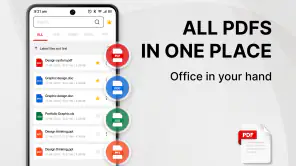
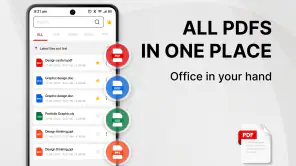
PDF Reader - Smart PDF Viewer makes more sense when I treat it as the reading point for those files, not as a replacement for every storage service on the phone. I can use the app to open a document when I need to read it, then keep my broader storage habits separate. This distinction matters because a viewer is most useful when it reduces friction at the moment of reading; it does not need to become the only place where every file lives.
The app is listed as a Productivity tool, and that description fits better than calling it a document-management suite. I would choose it for quick access and routine reading, especially if the default phone experience feels cluttered or unreliable. Someone who needs advanced editing, collaborative annotation, or a complete office system should set different expectations from the beginning.
Finding a document without creating more clutter
The first useful habit is simple: treat incoming PDFs as items that need a destination. When I download a document, I try to identify whether it is temporary, reference material, or something I may need again. A reader such as this becomes more helpful when I do not leave every file in the download folder and expect the app to solve the entire organization problem by itself.
For example, I might receive a warranty document in a chat. I can open it in the reader to check the model and coverage, then decide whether it belongs in a long-term folder or can be removed after use. With a course handout, I would keep the original filename and place it with related material. This small decision prevents the common problem of opening the same PDF repeatedly just to remember what it contains.
One of the less obvious benefits of a dedicated reader is mental separation. A browser is designed to move me between pages, a file manager is designed to expose storage, and a messaging app is designed around conversations. A PDF reader gives the document its own space. That makes reading feel less interrupted, particularly when I want to review several pages without returning to the source app after every tap.
A realistic everyday use case
Imagine that I am preparing for a trip and receive a booking document, an insurance PDF, and a transport confirmation through different channels. My old workflow would leave each file attached to its original message or buried in downloads. With this app as the reading layer, I can open each document in one place, check the important details, and decide which files deserve permanent storage.
The practical gain is not dramatic automation; it is fewer context switches. I can review the booking information, move to the next document, and return to the first when I need to compare details. For a person who mostly reads rather than edits PDFs, that focused flow is more useful than a long list of advanced tools that may never be touched.
Another example is a student reviewing lecture material on an Android phone. The reader can be the consistent place for handouts, while a separate note-taking app handles summaries. I prefer this division because it keeps the PDF intact and avoids turning every document into an improvised editing project. The trade-off is that the user must maintain a little discipline around filenames and folders.
Building a repeatable reading routine
I get the most value from this app when I use the same sequence each time: receive a PDF, open it deliberately, read or verify the relevant section, and then decide what happens to the file. That routine is more sustainable than installing a reader and hoping it will somehow organize an overflowing download folder.
For work documents, I would read them in batches rather than opening them randomly throughout the day. For personal paperwork, I would review the entire file once, note any action that it requires, and then store it where I can find it. The reader supports the reading portion of that system, but the action step still belongs in my calendar, task list, or notes. This is an important boundary: viewing a document is not the same as completing what the document asks me to do.
A useful trick is to pause at the end of every reading session and ask whether the file is still active. If it requires a signature, payment, reply, or follow-up, I record that separately before closing the document. If it is only reference material, I place it with similar files. This prevents PDFs from becoming silent reminders that never turn into completed tasks.
I also find it helpful to keep one reading session focused on one purpose. If I open a manual to solve a device problem, I avoid drifting into unrelated documents. That sounds obvious, but mobile reading is easily interrupted. A dedicated viewer can reduce the number of distractions, though it cannot remove notifications or poor file organization elsewhere on the phone.
Where the app fits beside familiar alternatives
Many Android phones can already display PDFs through a browser, a file manager, or an office application. Those options are perfectly adequate when I only open an occasional attachment. The advantage of this dedicated reader is consistency: I know which app I am using and can make PDF reading a repeatable part of my routine.
Cloud-drive viewers are stronger when I need synchronized access across devices or when documents already live online. Office suites are usually the better choice when I need to edit, convert, or work with several document formats. A browser is convenient for a one-time file, but it is not always the clearest home for a growing collection of saved PDFs.
That comparison makes the decision fairly clear. I would pick PDF Reader - Smart PDF Viewer for straightforward mobile reading and local document access. I would look elsewhere if my priority were shared folders, team review, serious editing, or a fully connected desktop-and-phone workflow. Choosing the narrower tool can be sensible, but only when its narrower purpose matches the way I actually work.
Small habits that improve the experience
My first tip is to rename important files before they disappear into a generic download list. A filename that includes the subject and month is much easier to recognize than a string of numbers copied from an attachment. The reader benefits from that preparation because finding the right document becomes a human task rather than a guessing game.
My second tip is to separate “read soon” from “keep for reference.” If both types stay together, the folder becomes a queue with no priority. I would keep active paperwork near my task system and archive finished material elsewhere. This is not a special feature of the app, but it is the difference between using a PDF viewer intentionally and merely accumulating files around it.
My third tip is to avoid using the reader as the only record of an important deadline. If a document contains a renewal date or payment instruction, I write that information into a reminder immediately. A PDF can be easy to overlook later, even if it is perfectly readable. The app helps me inspect the source; another tool should carry the responsibility of reminding me.
A fourth useful trade-off concerns offline reading. A dedicated reader is naturally convenient when the file is already on the device, but I still need to think about where the document came from and whether I have downloaded the complete version. For travel or commuting, I would open important files in advance rather than assuming I can retrieve them at the moment I need them.
Friction points I would consider before relying on it
The app is free to install, which makes trying it low risk, but it includes in-app purchases ranging from $6.49 to $69.99 per item. That pricing range is worth noticing before treating the app as a long-term solution. I would inspect any purchase screen carefully and decide whether the free experience already covers my needs. A person looking for a completely cost-free document workflow should be cautious about adding another paid layer to a basic task.
The average rating also tells me to keep expectations measured. A 3.7 average is neither a warning to avoid the app nor proof that it will suit every phone. PDF handling can feel different depending on screen size, Android setup, file complexity, and personal expectations. I would test it with the kinds of documents I actually read rather than judging it only with a simple sample file.
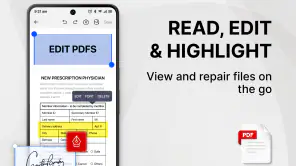
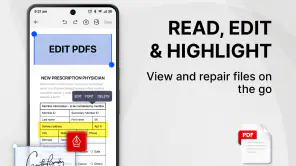
Another limitation is conceptual: a reader cannot fix a chaotic document system on its own. If my files have unclear names, duplicate copies, and no sensible storage location, opening them in this app may make reading easier without making retrieval easier. Likewise, if I need to mark up documents extensively, fill forms, sign pages, or collaborate with other people, a more specialized application may save time.
I would also skip it if my main requirement were seamless work across several devices. A cloud-centered alternative may be more suitable in that case because synchronization is the core of the workflow, not merely PDF viewing. The dedicated-reader approach is strongest when the phone itself is the main reading device and the user is comfortable managing storage separately.
Who should adopt it and who should look elsewhere
I think this app is a good fit for Android users who regularly receive PDFs and want a consistent way to read them without opening a full office suite every time. It should appeal to students, travelers, people handling household paperwork, and anyone whose phone has become a temporary filing cabinet. Its Everyone content rating also makes it broadly approachable for general household use.
It is especially suitable for someone who values a simple routine: open the document, read it, decide what action is needed, and store it sensibly. The current version is 109.0, and the app supports Android 7.0 or later, so compatibility should cover many still-used Android devices. I would still judge the experience on the specific phone, because older hardware can make any document viewer feel less comfortable than it does on a newer screen.
I would not make it my first recommendation for a professional team, a heavy editor, or a person whose documents must stay synchronized across a work computer and multiple mobile devices. Those users need more than a reading layer. They need editing, sharing, version control, or integrated storage, and a specialized office or cloud platform is likely to be a better foundation.
For a casual reader, however, the appeal is easy to understand. GambiSoftVn has positioned this as an accessible productivity app rather than an intimidating professional package. The free entry point lets me test the basic workflow before deciding whether it deserves a permanent place on my phone. I would keep the app if it made my own documents easier to reach and if its purchase prompts did not interfere with that simple purpose.
My final view after fitting it into a system
PDF Reader - Smart PDF Viewer works best when I give it a defined job: be the reliable reading point for PDFs, while folders, reminders, notes, and cloud storage handle the surrounding work. That approach keeps the app useful without asking it to become an entire productivity system. In my experience, the strongest improvement comes from the routine built around the reader, not from expecting one installation to solve every document problem.
I would recommend it to someone who wants a dedicated PDF experience on Android and mainly reads documents rather than edits them. I would suggest testing real files, organizing them deliberately, and checking the in-app purchase path before committing. If those conditions match your needs, the app can remove a surprising amount of everyday friction. If they do not, a cloud-drive viewer or full office suite will probably be the more sensible choice.
My honest recommendation is therefore practical rather than enthusiastic for its own sake: try it when your problem is scattered, inconvenient PDF reading. Keep it if it gives you a calmer, repeatable way to handle documents. Skip it when your real problem is collaboration, advanced editing, or cross-device document management. Used within that boundary, it is a useful free addition to a sustainable mobile workflow rather than another app that simply adds to the clutter.
FAQ
What is PDF Reader - Smart PDF Viewer used for?
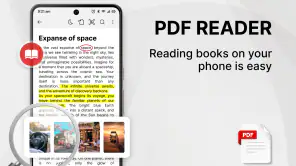
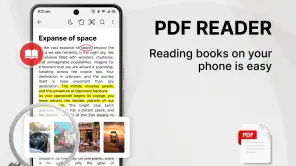
PDF Reader - Smart PDF Viewer is designed for opening, reading, and managing PDF documents on a mobile device. It can be useful for viewing ebooks, manuals, invoices, forms, study materials, and work documents without needing a desktop computer. Depending on the version installed, it may also include tools for searching text, organizing files, bookmarking pages, and sharing documents from your phone or tablet.
Can PDF Reader - Smart PDF Viewer open all types of PDF files?
The app is primarily intended for standard PDF documents, including text-based files, scanned pages, forms, and documents containing images. Most everyday PDFs should open normally, although very large files, password-protected documents, interactive forms, or files with unusual fonts and advanced multimedia features may not display perfectly. It is recommended to test important documents before relying on the app for professional or official use.
Does PDF Reader - Smart PDF Viewer work offline?
PDF Reader - Smart PDF Viewer can generally be used offline for documents that are already stored on your device or available through an offline folder. This makes it convenient when traveling or working without an internet connection. Internet access may still be required for downloading files from cloud services, displaying advertisements, checking updates, or using features connected to online storage and sharing platforms.
Is PDF Reader - Smart PDF Viewer free to download and use?
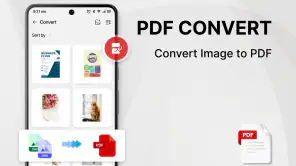
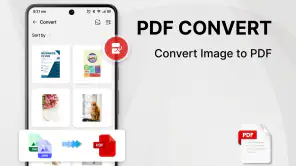
The application may be available as a free download, but some versions can include advertisements, optional purchases, or premium tools. Basic reading functions are commonly accessible without payment, while features such as advanced editing, document conversion, ad removal, cloud integration, or additional security options may depend on the specific edition. Check the store listing carefully before downloading to understand the current pricing and limitations.
Is PDF Reader - Smart PDF Viewer safe for private or sensitive documents?
The app can be convenient for reading personal files, but users should review its permissions and privacy policy before opening confidential documents. Avoid granting access that is not necessary, and be cautious when using sharing, cloud, or online conversion features. For banking records, identification documents, business files, or other sensitive PDFs, verify how the app handles stored files and consider using a trusted, security-focused reader.
Pros
- Opens PDFs quickly
- even when switching between several documents.
- Clean interface makes basic reading comfortable for first-time users.
- Supports convenient page thumbnails for faster document navigation.
- Useful search tool helps locate words or phrases inside lengthy files.
- Allows sharing documents directly from the viewer on supported devices.
Cons
- Some advanced tools may require an upgrade or include promotional prompts.
- Performance can drop with very large or image-heavy PDF files.
- Annotation options may feel limited compared with professional PDF suites.
- Text selection and copying can be inconsistent in scanned documents.
- Privacy details may need closer checking before opening sensitive files.